OCPPEye 26 — see what's going on
between charging station and backend.
Your own backend, proxy, charging station simulator and debug console for OCPP 1.6J and 2.0.1 — for commissioning engineers and backend developers.
Charging stations connect directly to OCPPEye, or OCPPEye sits as a proxy between the station and its backend and captures everything. The simulator plays one or more charging stations — by hand or with realistic sequences in time-lapse. Every message appears decoded in the debug console, with the response time on the request; EisBär OCPP logs can be imported.
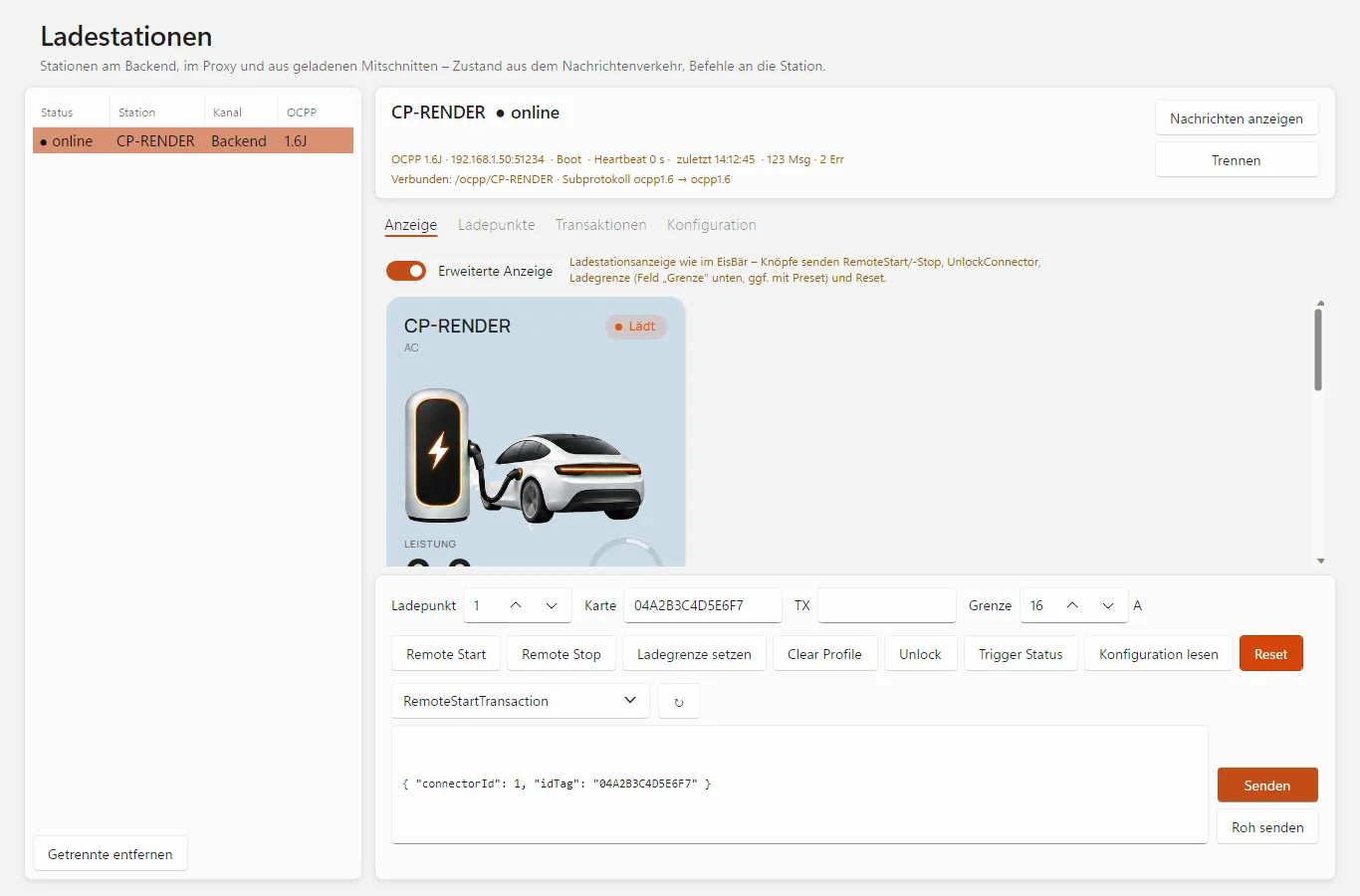
Charging stations: state of the connected station, charging station display and commands via quick button or as JSON. (Image from the program, test data.)
Backend, proxy and charging station in one tool
For people commissioning charging infrastructure and developers of backends and load management.
Your own backend (CSMS)
Charging stations connect via ws:// or wss://. OCPPEye shows the full handshake — path, subprotocols, basic auth, TLS —, even rejected attempts. Adjustable response behaviour: boot status and interval, authorize by list or for all, delayed responses.
Proxy between station and backend
The station is pointed at OCPPEye, which connects on to the actual backend and passes every message through unchanged. You can inject your own commands to the station or the backend; OCPPEye intercepts their responses.
Charging station simulator
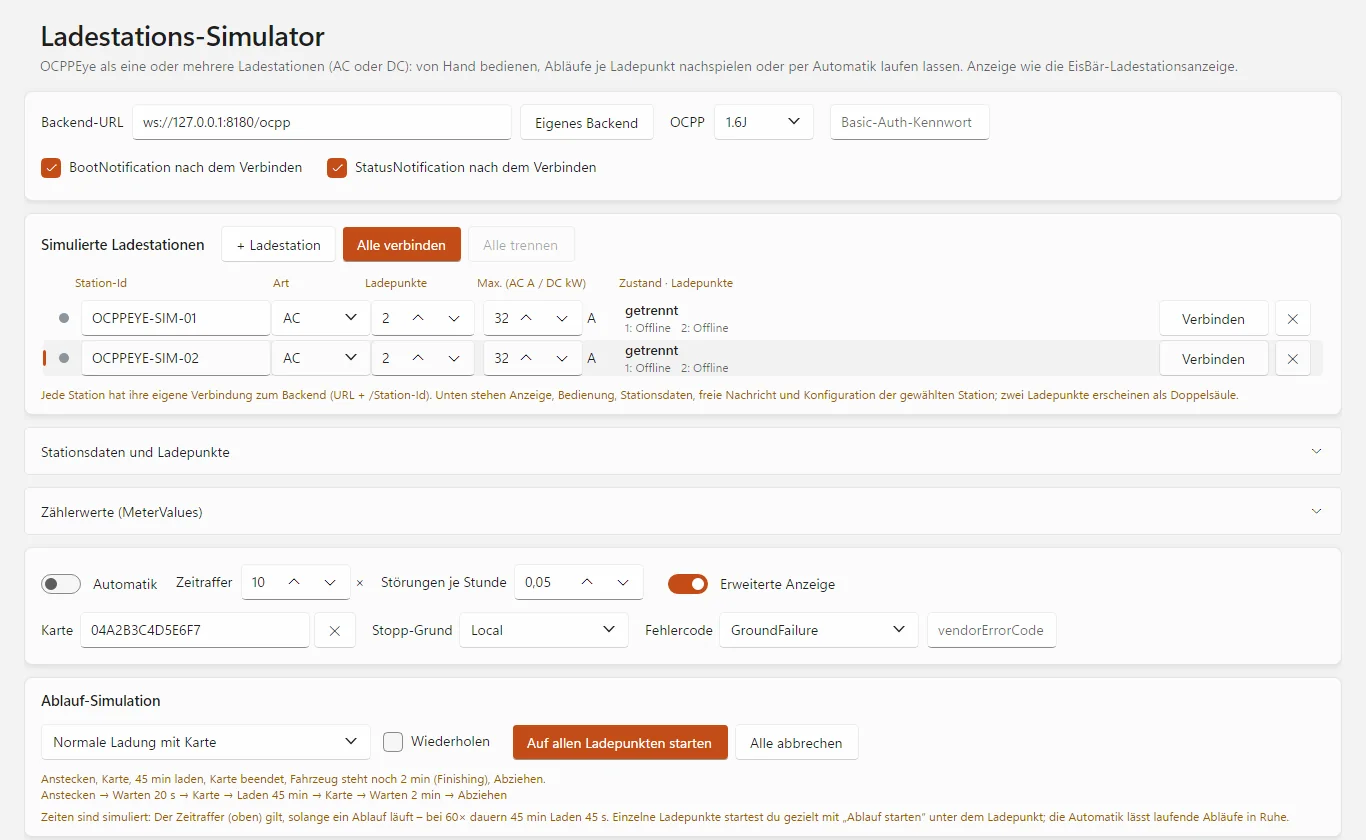
One or more simulated stations, AC or DC, 1.6J or 2.0.1, each with its own connection. Buttons per state: plug, card, pause, finish, fault. Phases can be switched off with a click; the power follows station and charging profile.
Sequences in time-lapse
12 sequence profiles — from normal charging via pauses, charging to full and unknown card to fault, connection loss and remote start. Startable per charge point; the automatic mode replays realistic sequences.
Debug console
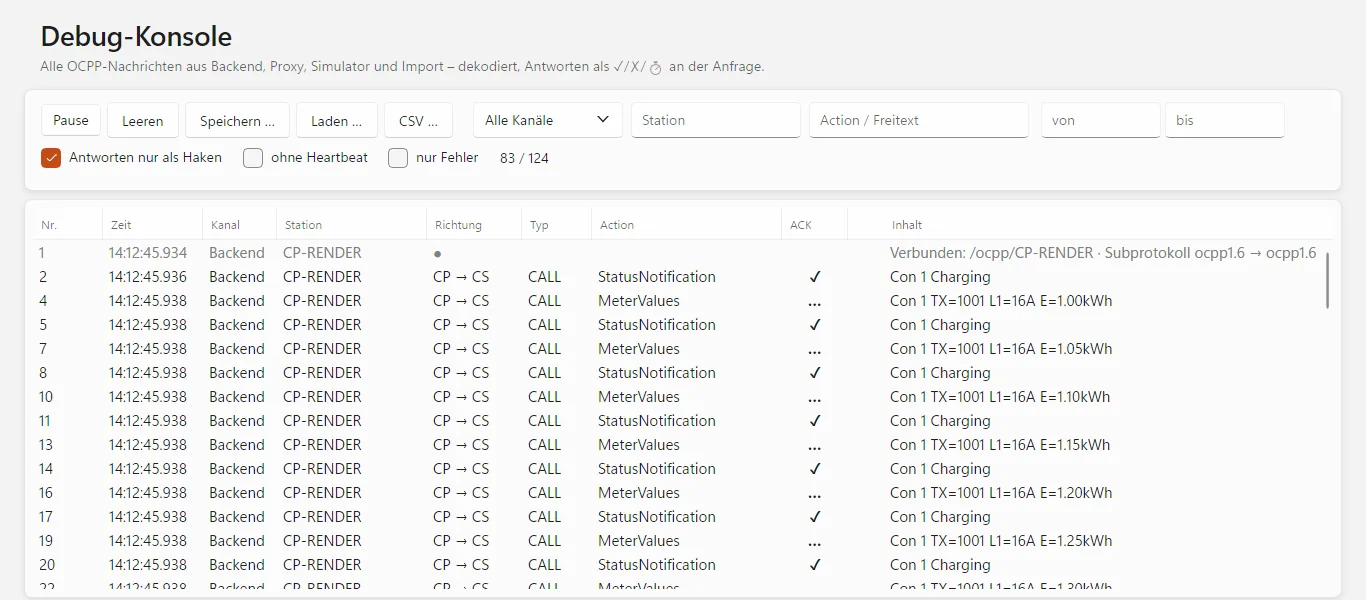
Every OCPP message decoded with a summary. Responses matched via the message ID: ✓ CallResult with response time, ✗ CallError, ⏱ no response. Filter by channel, station, action and time, CSV export, save and load captures.
Import EisBär OCPP logs
The debug console reads EisBär OCPP logs (messages full/reduced) and decodes them just like live — including the link between EisBär and a further backend.
Operate charging stations
State per charge point, transactions and configuration. Quick buttons for remote start/stop, charging limit, clear profile, unlock, trigger status and reset — or any command freely as JSON, even raw.
Just like EisBär
Read the station configuration, save it as .cfg and write a target configuration just like EisBär, evaluate EisBär presets. The charging station display matches the one in EisBär.
Also: basic auth · self-signed certificate for wss:// · light/dark · automatic updates · works with the Eye Suite 26
Every message visible, every role playable
Backend (CSMS)
The station opens a WebSocket connection to ws://PC:port/path/station-ID. Responses: BootNotification with adjustable status and interval, authorize by list or for all, StartTransaction with a running transaction number, other messages according to the specification. With “Delay response” you test the timeout behaviour of the station.
Proxy mode
One connection to the actual backend for each station — same station ID, same subprotocol, the authorization header is passed through. Every message appears once in the debug console (⇄). Injected commands (✎) are marked as OCPPEye's own. If one side ends, OCPPEye closes the other one too.
Simulator by hand
BootNotification and StatusNotification after connecting can be switched off individually, any status can be sent, present a card (authorize, start — the same card ends the session). Several stations as a list with station ID, AC/DC, charge points and power; stations with two charge points appear as a double column.
Meter values and charging profiles
Measurands from the configuration of the simulated station, adjustable forms of meter values — including those that EisBär compensates (ABL, Delta, total current only, kW/kWh, meter per session). Charging profiles in A and W; the power always follows the limit.
Debug console
Shows every OCPP message from backend, proxy, simulator and import: CP → CS (station to backend) or CS → CP, events in grey, errors in red. With “Responses as ticks only”, only requests remain in the list; the detail view shows both as JSON.
Station configuration
After boot, the backend reads the configuration and saves it — <Id>_all_latest.cfg always, the target file only as long as it is missing. On request it writes the target configuration back (2.0.1 via SetVariables) and requests boot and status according to the preset. In the simulator, a station can be recreated from a .cfg file.
At a glance
| OCPP | 1.6J · 2.0.1 |
| Roles | Backend (CSMS), proxy, charging station (simulator) |
| Connection | WebSocket ws:// and wss://, basic auth (user = station ID) |
| Ports (default) | Backend TCP 8180, proxy TCP 8181 |
| Simulator | AC and DC, several stations and charge points, 12 sequence profiles, automatic mode in time-lapse |
| Capture | own .ocpplog format, CSV export, import of EisBär OCPP logs |
Six typical jobs
Commissioning a charging station
Register the station with OCPPEye as the backend and see what it reports: boot data, charge points, status and meter values — and whether the connection succeeds at all.
Troubleshooting in live operation
As a proxy between the station and its backend, OCPPEye captures all traffic without changing it.
Backend development
The simulator plays one or more charging stations against your own backend — by hand or with sequences such as fault or connection loss.
Check load management
The simulator follows the backend's charging profiles. So you see whether limits in A or W arrive and take effect.
Analyse EisBär logs
Import EisBär OCPP logs, search them decoded and read off response times.
Save configuration
Save the configuration of a station as a .cfg file and write back a target configuration — just like in EisBär.
Try first, license later
Download OCPPEye 26 and request a free trial licence. The licence is activated right in the program.
- Windows: a single program file
- Linux x64 and arm64 (Raspberry Pi)
- The program installs updates itself on request
- Free, all features
- Usable even without a licence: debug console and import
- Annual licence for one computer, 12-month term
- All features including backend, proxy and simulator
- Updates included during the term
- Activation right in the program
For a licence, please write to us at info@busbaer.de. The licence is tied to one computer; if you change computers, please get in touch. After expiry you can still use the debug console including import, but you can no longer start the backend, proxy or simulator.

Part of the Eye Suite 26
All Eye tools fit into the free Eye Suite 26: once it is installed, its dashboard shows the licence status of OCPPEye 26, and the traffic also appears in the suite's combined monitor — together with KNX, Modbus and the other protocols. Without the suite, OCPPEye 26 works just the same.
On Windows, OCPPEye 26 asks once on first start whether it should install itself to C:\Program Files\Alexander Maier GmbH\OCPPEye 26\, and creates shortcuts on the desktop and in the Start menu. This needs administrator rights once; later updates run without them.
Windows, Linux and Raspberry Pi
| Windows | 64-bit |
| Linux | 64-bit: x64 for PCs, arm64 e.g. for Raspberry Pi 4 or 5 with Raspberry Pi OS 64-bit (Bookworm or later) and desktop. 32-bit systems are not supported. |
| Installation | Windows: a single program file, .NET included; on first start the program offers to install itself to C:\Program Files\Alexander Maier GmbH\.Linux: tar xzf OCPPEye26-linux-<arch>.tar.gz, then run bash install.sh in the unpacked folder — afterwards start it from the menu or with ocppeye26 in a terminal |
| Network | Backend and proxy listen on TCP (default 8180 and 8181) — the firewall must allow the ports inbound |
| Internet | for licence activation and updates |
After that, the program updates itself on request. There is no macOS download yet.
Frequently asked questions
Which OCPP versions are supported?
OCPP 1.6J and OCPP 2.0.1 — in the backend, in the proxy and in the simulator. The station names the version in the subprotocol when it connects (ocpp1.6 or ocpp2.0.1).
How can I try OCPPEye?
Download the program and request a free trial licence via “Request trial licence” on this page; it is activated in the program. The debug console, including importing captures and EisBär logs, can also be used without a licence.
What do I need for a charging station to connect to OCPPEye?
Start the backend and enter the displayed address as the backend URL in the charging station — without the station ID, the station appends it itself. The firewall must allow the TCP port inbound (default 8180 for the backend, 8181 for the proxy). The debug console shows rejected connection attempts with the reason: 404 path, 401 basic auth, 400 subprotocol.
Does the proxy change the messages?
No. Every message passes through unchanged and appears once in the debug console. For each station OCPPEye opens its own connection to the actual backend — same station ID, same subprotocol, basic auth is passed through. Only commands you inject yourself, and their responses, are intercepted by OCPPEye.
What can the simulator do?
OCPPEye connects to a backend as one or more charging stations — 1.6J or 2.0.1, AC or DC. Per charge point you operate plug, card, pause, “Finish” and fault; a click on a phase switches it off. The power follows the limits of station and charging profile. The simulator answers backend commands such as remote start/stop, reset, availability, configuration, charging profiles and TriggerMessage like a real station.
What are the sequences?
Prepared charging sessions in time-lapse, startable per charge point: 12 profiles, including normal charging, direct start, card first, pauses, charging to full, unknown card, fault, unplugging, connection loss, single-phase, remote start and end of the working day. The automatic mode replays realistic sequences on its own.
Can I analyse EisBär OCPP logs?
Yes. “Load” in the debug console reads OCPPEye's own captures (.ocpplog) and EisBär OCPP logs (messages full/reduced). The messages are decoded just like live and requests are matched to their responses.
Is TLS supported?
Yes. The backend accepts connections via ws:// and wss://. For wss:// without your own PFX file, OCPPEye creates a self-signed certificate in the data folder. It checks user and password via basic auth (user = station ID).
Can OCPPEye save the configuration of a station?
Yes. After boot, the backend reads the configuration (1.6 via GetConfiguration, 2.0.1 via GetBaseReport) and saves it as a .cfg file — in the same format as EisBär. On request OCPPEye writes a target configuration back; EisBär presets are evaluated.
Does OCPPEye run on Linux or Mac?
Linux yes: packages for x64 and arm64, also for the Raspberry Pi 4 or 5 with Raspberry Pi OS 64-bit. There is no download for macOS yet.
Do I have to install anything?
On Windows, OCPPEye is a single program file. On first start it asks once whether it should install itself to “C:\Program Files\Alexander Maier GmbH\OCPPEye 26\” and creates shortcuts; this needs administrator rights once. On Linux you unpack the archive and run install.sh.
Can I transfer the licence to another computer?
The licence is tied to one computer. If you change computers, please get in touch with us.
What does OCPPEye have to do with the Eye Suite 26?
If the free Eye Suite 26 is installed, its dashboard shows the licence status of OCPPEye 26, and the OCPP messages from backend, proxy and simulator also appear in the suite's combined monitor. Without the suite, OCPPEye works unchanged.
Another question? Write to us at info@busbaer.de.
See what the charging station says.
Download OCPPEye26.exe, request a trial licence, start the backend — and see the first BootNotification in plain text.
Get in touch
Imprint
Alexander Maier GmbH
Beckstraße 3
D-69412 Eberbach
Managing director: Alexander Maier
Registered office: Eberbach
Register court: Mannheim
Commercial register: HRB 335404
VAT ID: DE177682654
Phone: +49 (0) 6271 – 91 94 70
E-Mail: info@busbaer.de