ETS remote access,
explained clearly.
Installation, commissioning and secure operation — step by step, from the first setup to fault finding. For technicians programming a KNX installation remotely via ETS, and for anyone looking after the machine on the customer's site.
How remote access works
Three stations, two outbound connections: the ETS Connector at the technician's end and the Remote Agent on the customer's site meet in the EisBär Portal. No port needs to be opened on the customer's site.
ETS Connector
Presents ETS with a local KNXnet/IP interface.
EisBär Portal
Encrypted brokering — only passes encrypted data through.
Remote Agent + KNX bus
Connects remote access to the actual KNX installation.
Two programs, two operating modes
The key difference: one program is started when needed, the other runs permanently in the background.
ETS Connector
Runs on the technician's notebook and is only started when needed.
- Startmanually, from the desktop or Start menu
- Operationin the open program window
- Closingclosing the window disconnects remote access
Remote Agent
Runs permanently at the installation so that it stays reachable.
- Startautomatically, as a Windows service
- Operationtray icon or management window
- Closingthe service keeps running
Installation in four steps
One file each, one double-click each — the ETS Connector at the technician's end, the Remote Agent on the customer's site.
-
Run the setup file
At the technician's end
KNX2GO-EtsConnector-Setup-<version>.exe, on the customer's siteKNX2GO-RemoteAgent-Setup-<version>.exe. -
Confirm the UAC prompt
Windows asks for administrator rights. Only the installation itself needs them — day-to-day operation later does not.
-
Accept the licence
Read and accept the licence agreement — once per machine, switchable between German and English.
-
Finish the installation
The ETS Connector creates an icon on the desktop and in the Start menu and does not run yet. The Remote Agent sets up and starts its service, and from then on appears with its tray icon at every sign-in.
- Windows 10/11, 64-bit
- Administrator rights for the installation only
- Internet access to the EisBär Portal
- WebView2 optional — already present on current Windows 11; otherwise a plainer but fully functional view takes over automatically
--uninstall switch; the configuration is kept for a later reinstall.
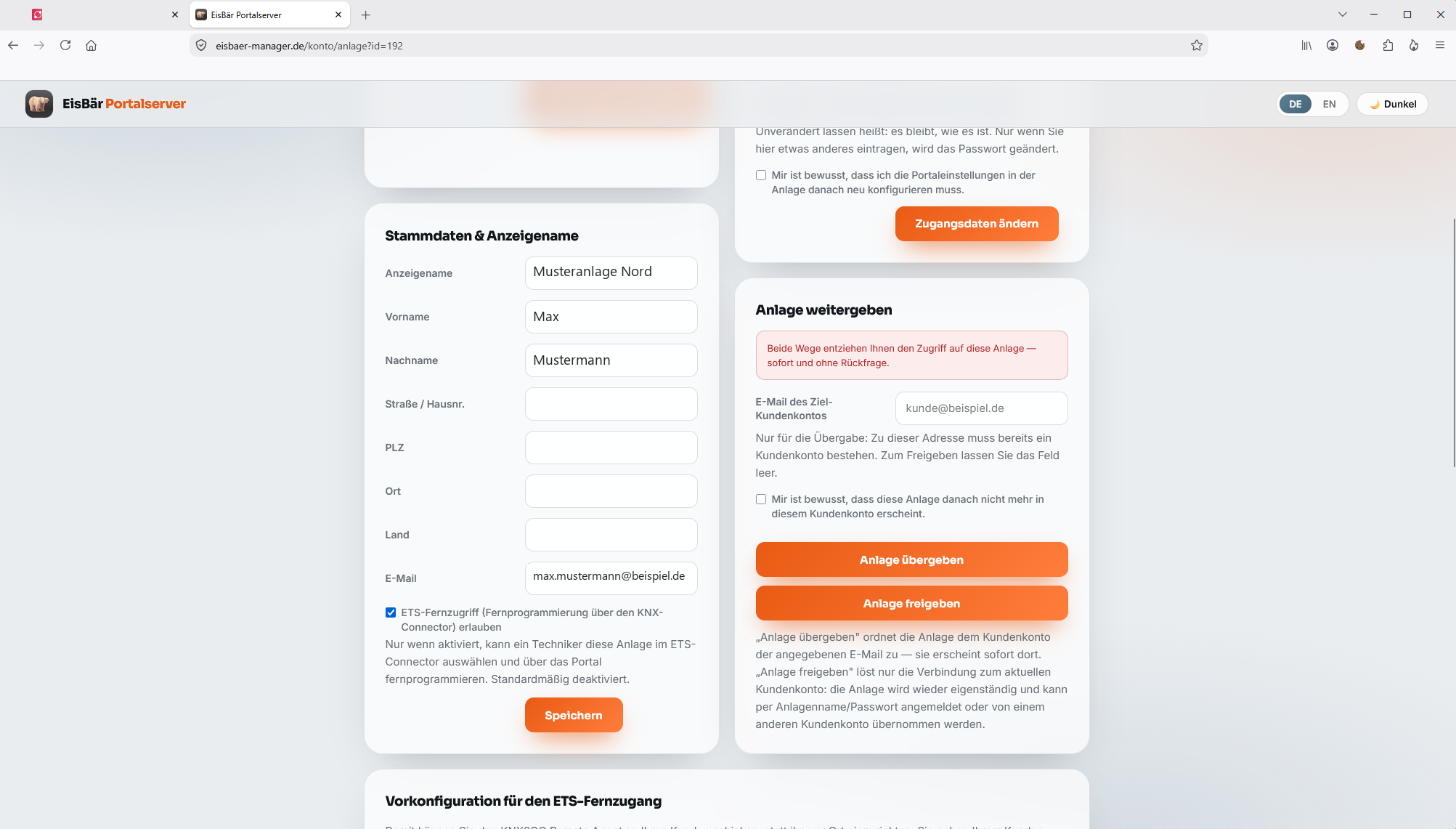
Release remote access in the Portal first
This step is the one most often missed — without it, the installation does not show up in the ETS Connector at all.
Allow ETS remote access
In the installation's master data, tick “Allow ETS remote access (remote programming via the KNX Connector)” and save. Only then does the installation appear in the ETS Connector.
Commissioning at the technician's end
-
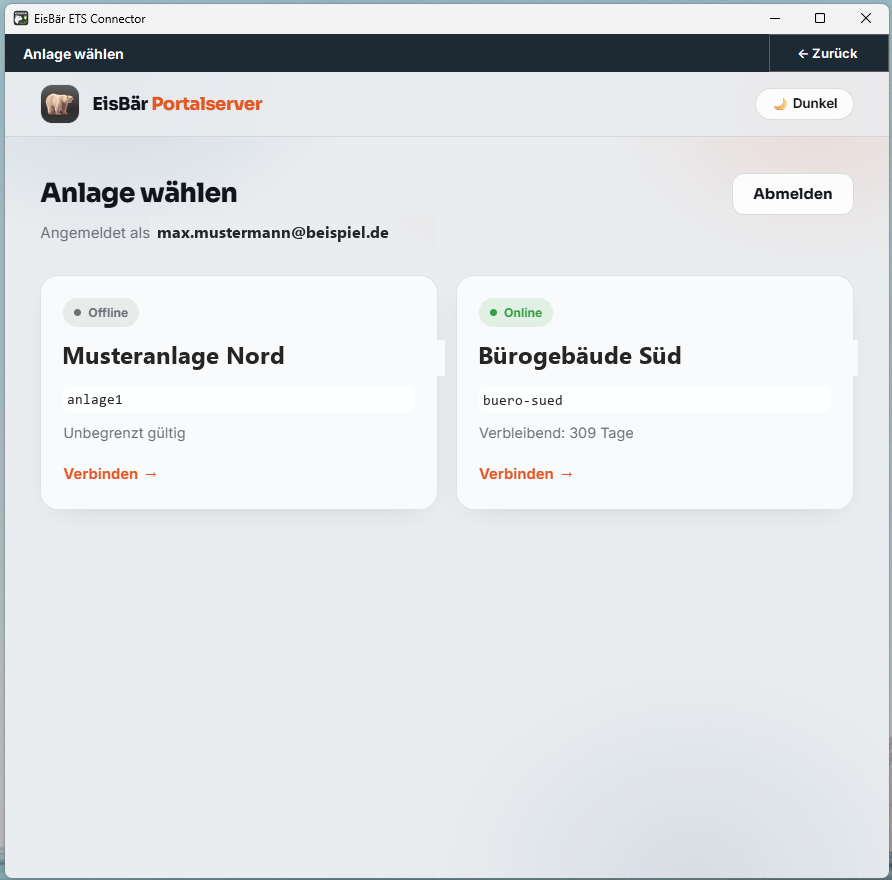
Select the installation
Sign in with the customer account and select the installation.
-
Import the keyring
Only with KNX IP Secure: provide the
.knxkeysfile and its password. -
Connect in ETS
The installation appears as an ordinary KNXnet/IP interface — programming, group and bus monitor just like on site.
The configuration key shortens the setup
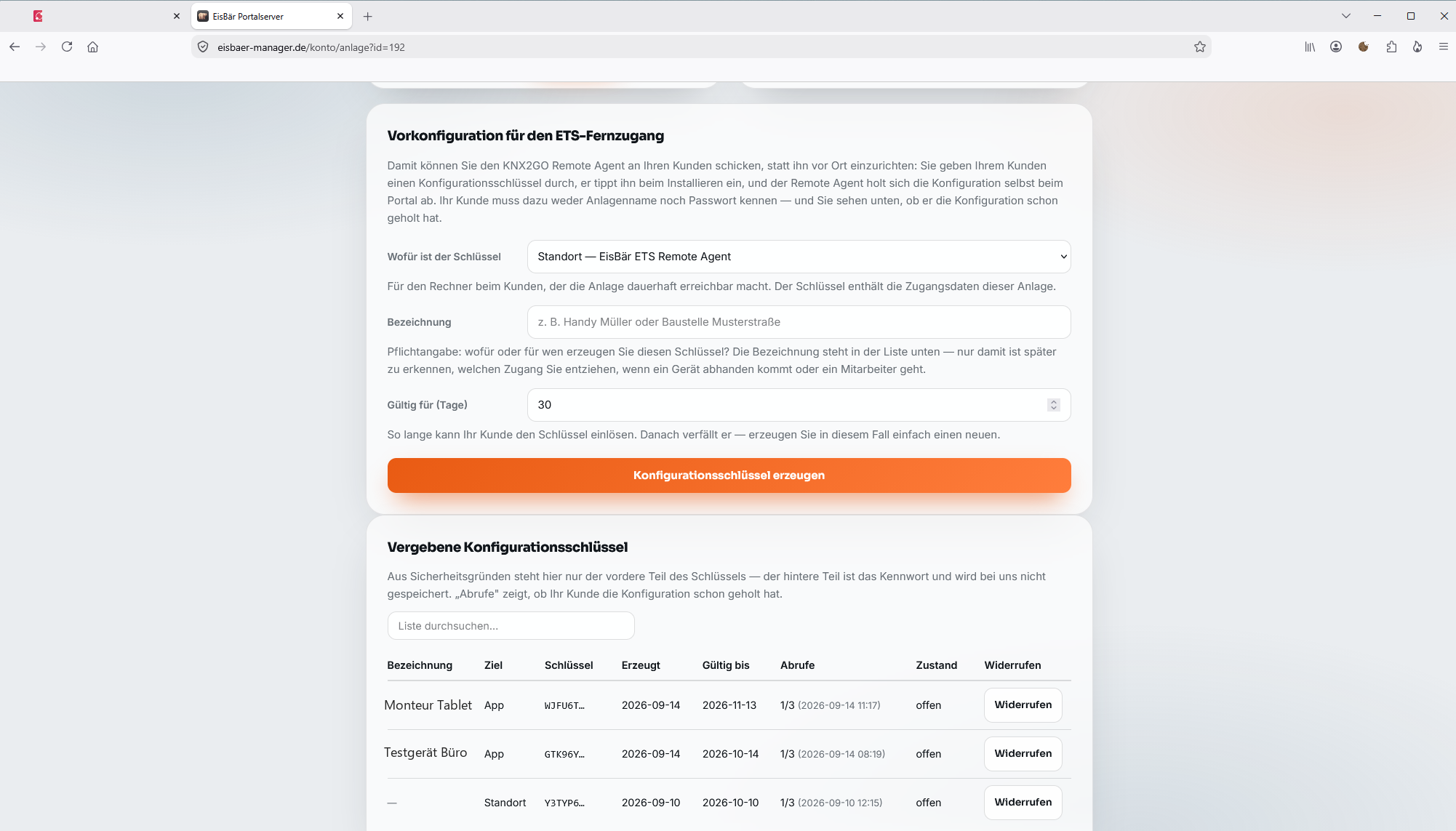
This lets you send the Remote Agent to the customer instead of setting it up on site: the customer types in a key during installation, and the Remote Agent fetches everything else from the Portal itself. The customer never needs to know the installation name or password.
- Pick the target: Site — EisBär ETS Remote Agent
- A label is mandatory — it is the only way to tell later which access to revoke if a device goes missing or an employee leaves
- Set the validity in days (default 30)
- The list shows whether the customer has already fetched the configuration — and you can revoke the key at any time
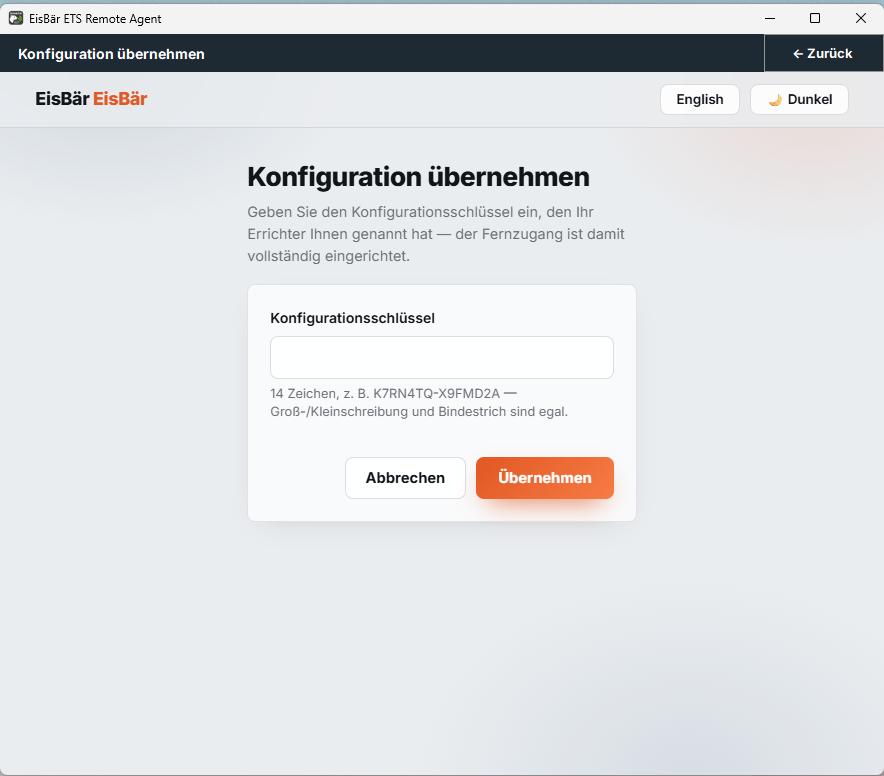
- Open “Apply configuration…” in the Remote Agent
- Type in the key — upper/lower case and the hyphen do not matter
- The Remote Agent fetches the settings from the Portal itself; remote access is then fully set up
Security is controlled in two places
Keyring in the ETS Connector
The technician imports the .knxkeys file. The Remote Agent receives the required credentials over the secured connection — nothing needs to be entered on site.
PIN and access lock
The configuration PIN protects changes to the Remote Agent. The access lock blocks remote access immediately and reversibly at any time.
Status colours show the state at a glance
- Green — ready or connected
- Orange — access deliberately blocked
- Red — service running, no connection
- Grey — service not reachable
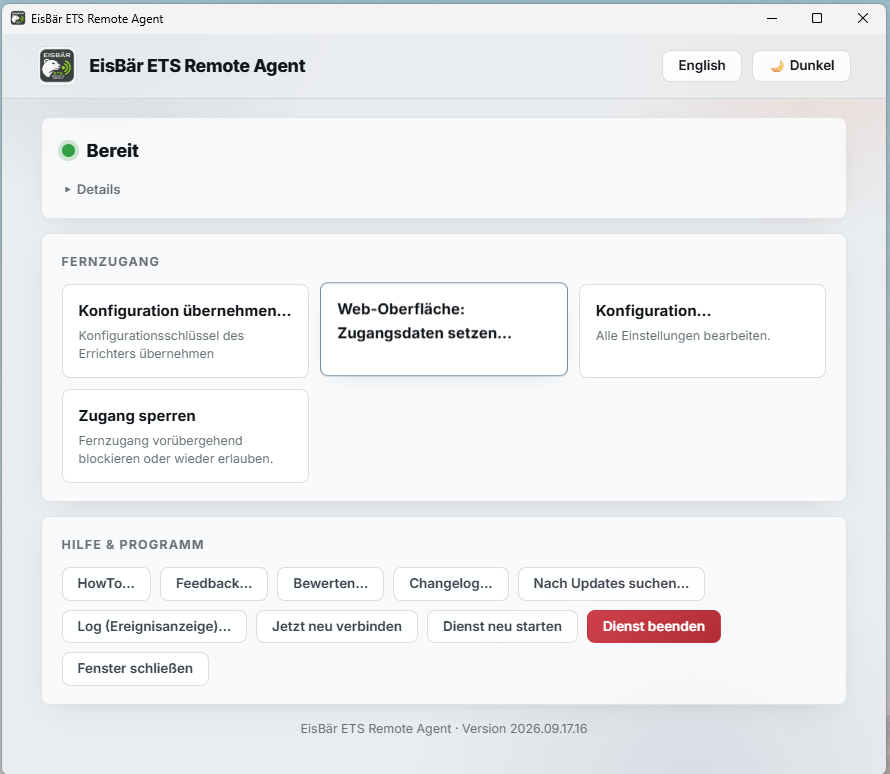
The Remote Agent can also be managed from a browser
Check the status
Search for the KNX interface
Block or release access
Stop the service or reconnect
Username and password are set from the tray menu. The browser warning about the self-signed certificate has to be confirmed once.
For other devices on the local network to connect, the Windows firewall must allow inbound connections on port 8443.
Further services and updates from afar
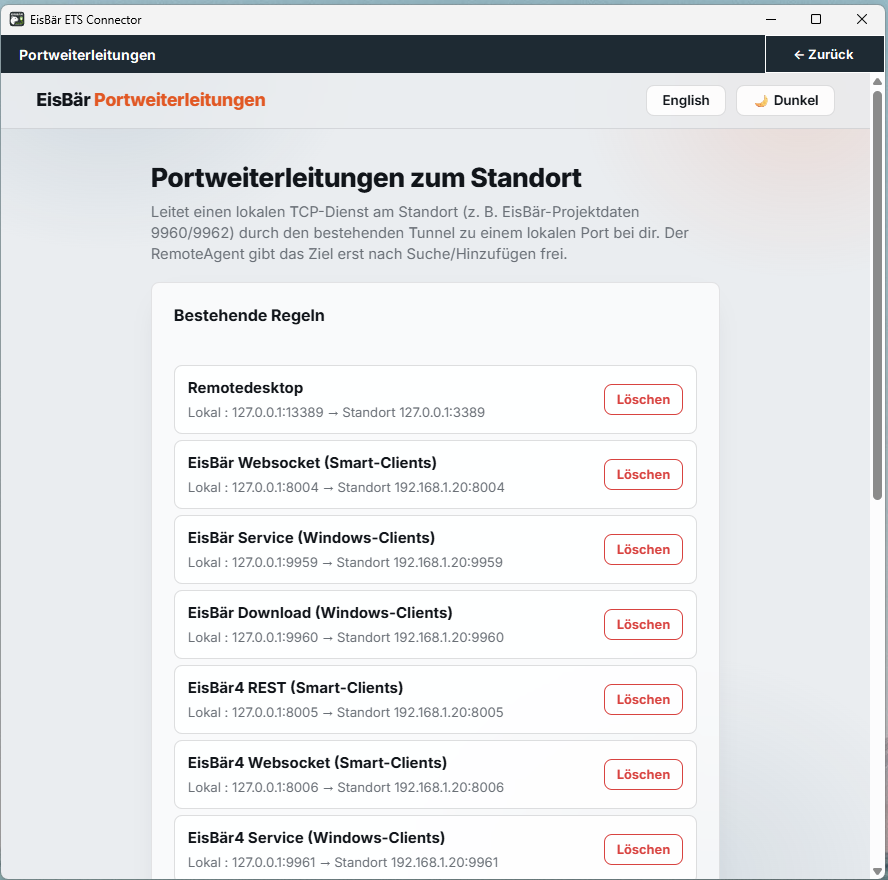
Making local TCP services reachable
A local TCP service on site is routed through the existing tunnel to a local port at the technician's end — for remote service, visualisation or project data, for example. The Remote Agent only releases the target after it has been searched for or added.
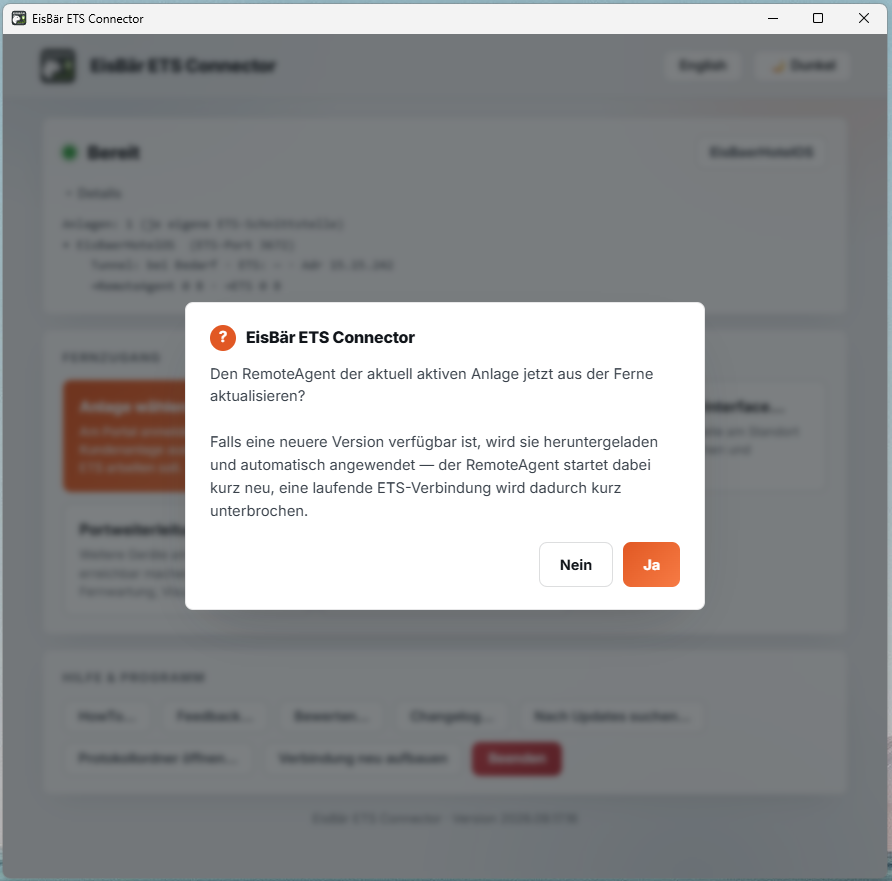
Updating the Remote Agent in a controlled way
The Remote Agent of the active installation can be updated remotely: if a newer version is available, it is downloaded and applied.
The most common faults can be narrowed down quickly
| Symptom | First thing to check |
|---|---|
| ETS finds no interface | Start the Connector and leave the window open |
| The Remote Agent is grey | Restart the Windows service |
| Connected, but no telegrams | Check the access lock and select the right gateway |
| KNX IP Secure does not connect | Import the keyring again |
| Interface found, no connection | Check for free tunnel channels |
| The Remote Agent stays red | Check the Secure switch and the gateway setting |
The complete presentation as a PDF
Every chapter on this page across twelve slides — ready to pass on to customers and colleagues.
ETS remote access, explained clearly
Installation, commissioning and secure operation
PDF · 12 pages · about 1.1 MB · German
Frequently asked questions
Why doesn't the installation show up in the ETS Connector?
Because “Allow ETS remote access” has not yet been ticked in the installation's master data in the EisBär Portal. It is disabled by default; the installation only appears in the ETS Connector once it has been saved.
Does the ETS Connector window have to stay open?
Yes. The ETS Connector is started when needed; closing the window disconnects remote access. On the customer's site it is the other way round: the Remote Agent keeps running as a Windows service even when the management window is closed.
How long is a configuration key valid?
You set the validity when generating the key in the Portal, typically 30 days. The key has 14 characters and can only be redeemed a limited number of times. If it has expired or been used up, simply generate a new one in the Portal.
Does the customer need to know the installation name and password?
No. That is exactly what the configuration key is for: during installation the customer only types in the key, and the Remote Agent fetches everything else from the Portal itself. Afterwards you can see in the Portal whether the configuration has already been fetched.
What is the factory setting of the configuration PIN?
1234. The configuration PIN protects changes to the Remote Agent on site and should be changed after commissioning.
What is the most common mistake with KNX IP Secure?
That “Use Secure” is switched on although the gateway does not require KNX IP Secure at all. Only enable Secure if the installation actually uses it.
At which address do I reach the Remote Agent's web interface?
At https://<computer name or IP>:8443/ on the local network. Username and password are set once from the tray menu, and the browser's warning about the self-signed certificate has to be confirmed once. For access from other devices, the Windows firewall must allow inbound connections on port 8443.
What does ETS remote access cost?
ETS remote access is booked annually per installation through the EisBär Portal Service. Details and pricing on request at info@busbaer.de.
Questions about remote access?
We advise on licensing, setup and how the ETS Connector, the Remote Agent and the EisBär Portal Service work together.
Get in touch
Imprint
Alexander Maier GmbH
Beckstraße 3
D-69412 Eberbach
Managing director: Alexander Maier
Registered office: Eberbach
Register court: Mannheim
Commercial register: HRB 335404
VAT ID: DE177682654
Phone: +49 (0) 6271 – 91 94 70
E-Mail: info@busbaer.de